
Organisation and Team Hierarchy
The Organisation menu, located under the Insights section of the navigation sidebar, serves as the operational command centre for Team Managers and organisation leads. It unifies the governance of human members, isolated workspaces, and AI inference configurations.
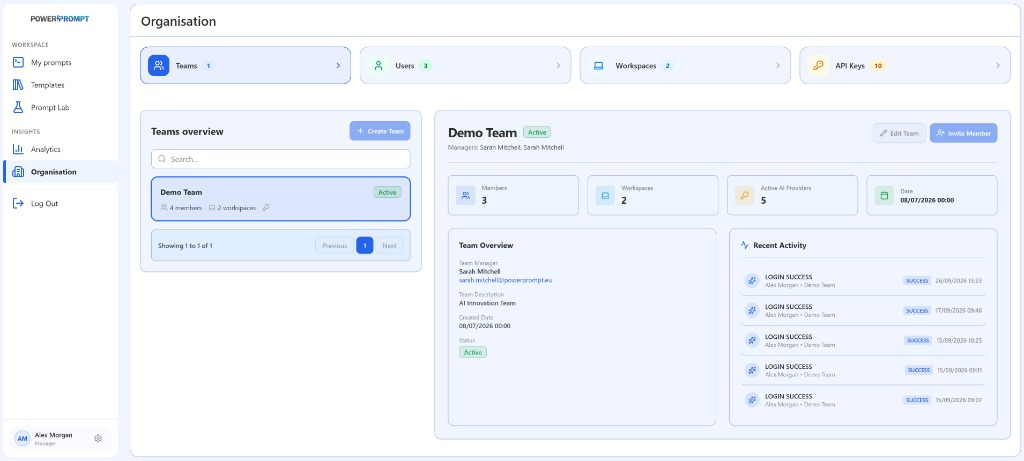
1. The Four Organisation Pillars
The top navigation row presents four aggregate metric cards that double as fast navigation tabs:
| Tab / Counter | Metric Shown | Operational Purpose |
|---|---|---|
| Teams | Total teams created | Team roster, structural setup, and operational activity. |
| Users | Total affiliated collaborators | User directory, account status, and role assignments. |
| Workspaces | Configured isolated workspaces | Boundary perimeters for prompts, categories, and permissions. |
| API Keys | Active inference API credentials | Governance of LLM model connections and team credentials. |
2. Teams Overview
When the Teams tab is active, the interface displays a two-column layout: the team directory on the left and the detailed operational card of the selected team on the right.
Left Panel: Teams Overview
This panel lists all teams within your supervisory scope:
+ Create TeamButton: provision a new team by specifying its title, designated manager, and operational mandate.- Search Bar (
Search...): filter teams dynamically by keyword. - Team Cards: summary blocks indicating:
- Team name (e.g., Demo Team).
- Operational status badge (e.g., green
Activebadge). - Member headcount (e.g., 4 members).
- Connected workspace count (e.g., 2 workspaces).
- Key icon signaling active AI inference credentials.
- Pagination Controls: standard navigation (
Previous, page index,Next).
3. Selected Team Detail View
The right-hand panel provides full visibility into the active team’s setup and activity.
Management Header
- Team Name & Status: display header with live
Activebadge. - Assigned Managers: roster of authorized administrators (
Managers: Sarah Mitchell...). Edit TeamButton: modify team properties, descriptions, or administrative settings.Invite MemberButton: launch the invitation drawer to add a user directly to this specific team.
Team Resource KPIs
Four summary cards highlight resource distribution for the selected team:
- Members: total collaborators assigned to the team.
- Workspaces: number of partitioned prompt workspaces available.
- Active AI Providers: count of operational AI connections (OpenAI, Anthropic, Google, private endpoints).
- Date: exact creation timestamp of the team within the platform.
Team Overview Block (Structural Identity)
This sub-panel summarizes core administrative parameters:
- Team Manager: full name and corporate email address of the team lead.
- Team Description: functional objective (e.g., AI Innovation Team).
- Created Date: baseline creation timestamp.
- Status: operational state (
Active).
Recent Activity Block (Audit Trail & Access Tracking)
The Recent Activity stream delivers an audit trail of team-level security and access events:
- Event Type: e.g.,
LOGIN SUCCESSupon verified authentication. - Subject & Team Scope: collaborator name and target team (e.g., Alex Morgan • Demo Team).
- Compliance Badge: verification status (
SUCCESS). - Precise Timestamp: exact date and minute (e.g., 26/09/2026 13:23) ensuring transparent access monitoring.
4. Inviting Collaborators and Managing Roles
To onboard new members to a team:
- Click the blue
Invite Memberbutton in the team header (or switch to the Users tab). - Enter the collaborator’s corporate email address.
- Assign their initial privilege level:
- Standard User: accesses assigned team workspaces to draft, test, and execute prompts.
- Team Manager: oversees members, administers workspaces, and tracks aggregate team analytics.
- Dispatch the invite: the collaborator receives an onboarding email containing secure activation steps.
5. Offboarding and Lifecycle Transitions
During team restructurings, internal mobility, or staff departures:
- Account Deactivation: revokes access credentials immediately without removing authored prompts or disrupting published version histories.
- Ownership Reassignment: reassign workspace stewardship and critical prompts to a designated peer.
- Pre-Archiving Audit: review the Recent Activity stream to confirm session closure before account retirement.