
User Directory and Access Permissions
The Users tab of the Organisation menu (under the Insights section in the navigation sidebar) provides managers with a centralized member directory. It enables administrators to calibrate user privileges, audit recent logins, and execute administrative actions such as credential resets, account suspensions, and CSV roster exports.
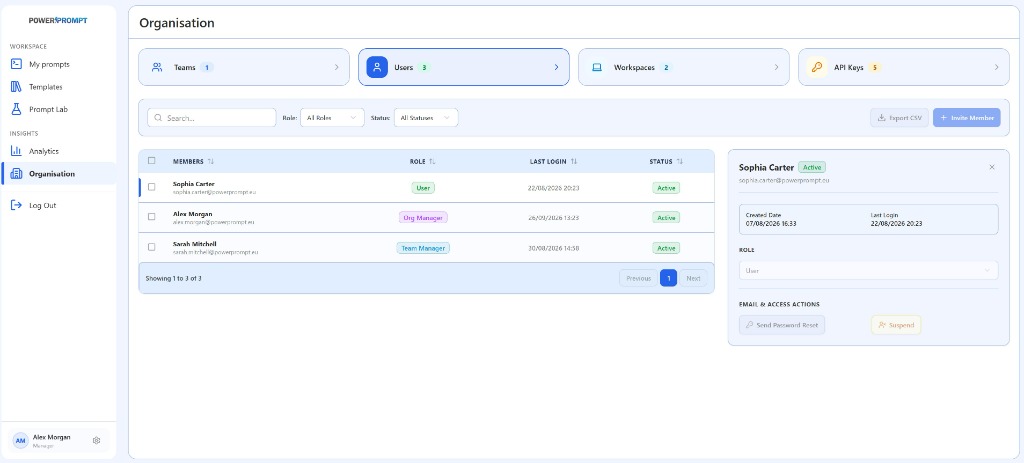
1. The Users Console
The screen provides dynamic search controls, a centralized member table, and an interactive right-hand user inspection drawer.
Search Toolbar, Filters, and Roster Actions
Located directly above the main table, several tools streamline directory governance:
- Search Bar (
Search...): dynamic text filtering on member names or email addresses. - Role Filter (
Role: All Roles): filter collaborators by privilege tier (User, Team Manager, Org Manager). - Status Filter (
Status: All Statuses): filter by operational account state (Active, Suspended). Export CSVButton: instantly downloads the entire organization user directory in CSV format for HR or security compliance audits.+ Invite MemberButton: opens the modal to onboard a new collaborator via email.
2. Organization Members Table
The main table lists every user affiliated with the organization along with their active permissions:
| Column | Description | Operational Role |
|---|---|---|
| MEMBERS | Checkbox, full name, and email | Collaborator identification with bulk selection capability. |
| ROLE | Assigned role badge | Access tier within the tenant (User, Team Manager, Org Manager). |
| LAST LOGIN | Authentication timestamp | Exact date and time of the last verified session. |
| STATUS | Account status badge | Confirms whether the account is active (Active in green) or suspended. |
All columns support dynamic sorting (⇅), and pagination controls at the bottom of the table (Showing X to Y of Z, Previous, Next) support smooth navigation.
Role Tiers in the Interface
Power Prompt defines three distinct operational roles with color-coded badges:
- User (green badge): standard collaborator. Operates within assigned workspaces to author, test, and apply prompts.
- Team Manager (cyan badge): team lead. Oversees team members, administers affiliated workspaces, and tracks departmental metrics.
- Org Manager (purple badge): organization administrator. Holds tenant-wide visibility across all teams, workspaces, API credentials, and billing.
3. User Inspector Panel (Right Drawer)
Clicking any row in the table (marked by an active blue indicator on the left border) opens the detailed user profile card in the right drawer:
Profile Header
- Identity and Status: full name (e.g., Sophia Carter), green
Activestatus badge, corporate email address, and close button✕.
Access Telemetry
Two timestamp summary cards detail account activity:
- Created Date: initial account creation timestamp (e.g., 07/08/2026 16:33).
- Last Login: most recent recorded session (e.g., 22/08/2026 20:23), assisting managers in detecting dormant accounts.
Role Reassignment (ROLE)
An inline dropdown selector allows managers to reassign user privileges (User, Team Manager, Org Manager) immediately without deleting or recreating user accounts. Changes apply starting with the collaborator’s next session action.
Email and Access Actions (EMAIL & ACCESS ACTIONS)
Two quick-action buttons resolve common access administrative requests:
Send Password Reset: immediately dispatches a secure password reset link to the collaborator’s registered email address.Suspend(orange warning button): instantly freezes account access during employee offboarding or pending security reviews, while preserving authored prompts and version records intact.
4. Inviting New Collaborators
To onboard a new team member:
- Click the blue
+ Invite Memberbutton in the upper-right corner. - Enter the collaborator’s corporate email address.
- Select their initial role (User or Team Manager).
- Assign target teams and accessible workspaces.
- Submit: the collaborator receives an automated onboarding email containing secure account activation instructions.