
Workspace Management and Access Boundaries
The Workspace represents the primary operational container in Power Prompt. Accessible directly from the Workspaces tab of the Organisation menu (under the Insights section in the navigation sidebar), this console enables managers to govern compartmentalized project environments, allocate team members, and administer prompt repository lifecycles.
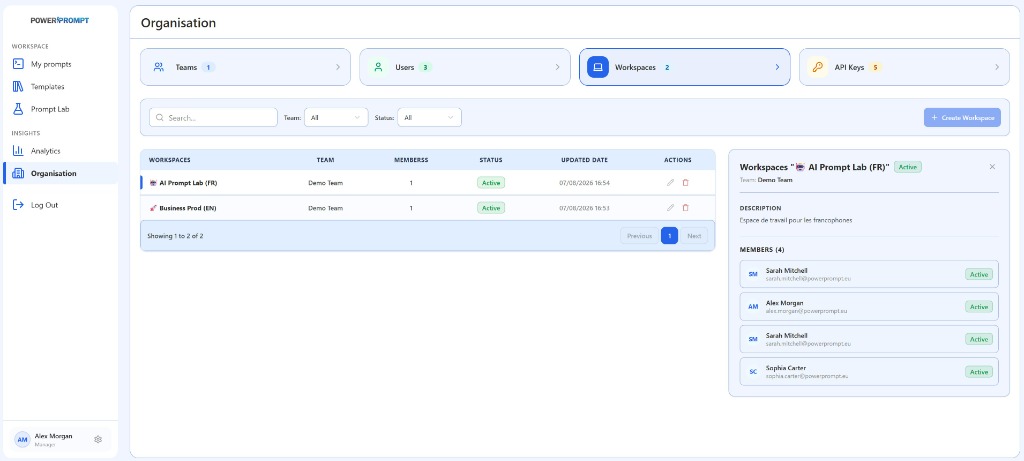
1. The Workspaces Console
The screen consolidates search and filtering controls, a central summary table of existing workspaces, and an interactive right-hand inspector panel detailing the active workspace configuration.
Search Toolbar and Filter Controls
Located directly above the main table, several controls streamline navigation:
- Search Bar (
Search...): dynamic text filtering on workspace titles. - Team Filter (
Team: All): restrict the list to workspaces affiliated with a specific team (e.g., Demo Team). - Status Filter (
Status: All): filter workspaces by operational state (Active, Inactive). + Create WorkspaceButton: opens the modal to establish a new workspace environment.
2. Workspaces Summary Table
The central table catalogues all active workspace perimeters configured within the organization:
| Column | Description | Operational Role |
|---|---|---|
| WORKSPACES | Workspace title with custom emoji / icon | Immediate visual recognition (e.g., 🤖 AI Prompt Lab (FR), 🚀 Business Prod (EN)). |
| TEAM | Parent team assignment | Governing team holding operational ownership of resources. |
| MEMBERS | Member headcount | Total collaborators granted access to the workspace. |
| STATUS | Operational status badge | Live indicator of workspace availability (Active in green). |
| UPDATED DATE | Modification timestamp | Exact date and time of the last configuration update. |
| ACTIONS | 2 quick-action buttons | Pencil icon (edit properties) and red trashcan icon (delete or archive workspace). |
Pagination controls at the bottom of the table (Showing X to Y of Z, Previous, Next) support smooth navigation across large enterprise deployments.
3. Workspace Inspector Panel (Right Drawer)
Selecting any table row (highlighted by an active blue indicator on the left border) opens an inspection card on the right-hand side:
Workspace Header
- Title and Icon: displays the full identifier (e.g.,
Workspaces "🤖 AI Prompt Lab (FR)"). - Status Badge: confirms live operational availability (
Active). - Close Button (
✕): dismisses the side drawer to expand the table view. - Parent Team Subtitle: indicates the governing team (e.g.,
Team: Demo Team).
Functional Scope (DESCRIPTION)
Documents the operational mandate of the workspace (e.g., Espace de travail pour les francophones). Provides immediate orientation on intended workflows, business units, or language specifications.
Assigned Member Roster (MEMBERS)
Lists all authorized collaborators affiliated with the selected workspace:
- Avatar Badge: collaborator initials (e.g.,
SM,AM,SC). - Name & Contact: full name and corporate email address (e.g., Sarah Mitchell, sarah.mitchell@powerprompt.eu).
- Individual Status: access verification badge (
Active).
4. Provisioning a New Workspace
To establish a new workspace:
- Open the Organisation menu in the sidebar and select the Workspaces tab.
- Click the blue
+ Create Workspacebutton. - Specify:
- Workspace Name: explicit title, optionally prefixed with an icon or language tag (e.g.,
🤖 Support Desk (EN)). - Description: operational scope and usage guidelines.
- Governing Team: select the parent team from the dropdown roster.
- Workspace Name: explicit title, optionally prefixed with an icon or language tag (e.g.,
- Select the initial roster of team members granted access.
- Save: the workspace becomes immediately operational and available to designated collaborators.
5. Structuring Best Practices
To keep workspace environments efficient and scalable:
- Linguistic or Functional Isolation: partition workspaces by operating language (FR vs EN) or functional division (Marketing, Support, Legal).
- Clear Category Hierarchies: establish 3 to 6 major categories per workspace to structure prompt libraries logically.
- Tag Governance: enforce the 4-tag maximum rule per prompt to keep cross-workspace search clean and precise.