
Versioning and Prompt History
Power Prompt ensures absolute traceability and robustness for enterprise prompt assets through automated, immutable version control. Every modification is recorded to protect prompt lifecycles.
1. Version Creation and Draft Management
Power Prompt distinguishes work-in-progress drafting from official publication:
- Save (or
Ctrl+S): saves your work as a private Draft (marked by an orange dot in the right-hand panel). This draft is strictly personal to you, does not increment the official version number, and does not affect team members using the prompt in production. - Publish Version (
Publish Version): formalises changes and automatically generates a new incremented version (V1,V2,V3). The prompt transitions to• Published(green badge) and becomes the official version accessible to team members. This action resets the comment thread for the new version: discussions from the prior version are automatically archived and remain consultable in the version-filtered history.
Each published version preserves a complete snapshot of the prompt:
- Precise Timestamp: exact date and time of publication.
- Author Attribution: collaborator who published the revision.
- Release Notes: brief explanation detailing what was altered or added (e.g., “Examples added for more context”).
- Complete Content: prompt text, system instructions, dynamic variables, and associated execution models.
- Dedicated Comment Thread: team feedback and review threads remain faithfully linked to that specific historical revision.
2. Visual Version Comparator (Compare Versions)
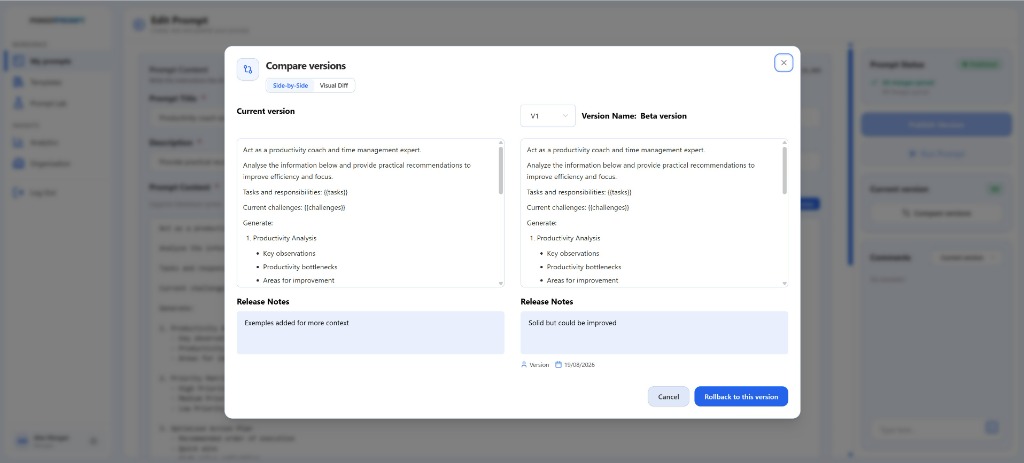
To inspect differences between two revisions before deployment or diagnose prompt regressions, Power Prompt embeds a dedicated comparison modal accessible in one click.
Opening the Comparator
- Open the target prompt in edit mode.
- In the right-hand sidebar, under the active version indicator (e.g., green
V2badge), click theCompare versionsbutton. - The Compare versions modal opens at the centre of your screen.
The Two Inspection Modes
The modal provides two complementary viewing modes via top tabs:
- Side-by-Side: displays the current version in the left column and the selected historical version in the right column. Ideal for reading full instructions in parallel and verifying variable syntax
{{variable}}. - Visual Diff: highlights additions in green, deletions in red or strikethrough, and line-by-line character shifts.
Version Selector and Release Notes
In the right column of the modal:
- Version Dropdown: choose any prior milestone (
V1,V2…). The version name displays in the header (e.g.,Version Name: Beta version). - Release Notes Panel: presents the release notes attached to both versions, providing immediate visibility into historical context.
- Creation Timestamp: displays the exact date the prior version was published (e.g.,
15/08/2026).
3. Restoring an Earlier Version (Rollback)
If recent edits degrade model output quality or introduce unwanted regressions:
- Inside the comparison modal, choose the healthy historical version in the right column.
- Click the blue
Rollback to this versionbutton (located in the bottom-right corner of the modal). - Power Prompt immediately restores the prompt instructions, variables, and parameters of that historical version.
Immutable Audit Trail Principle
Restoring an earlier version never deletes or overwrites existing history. Instead, Power Prompt creates a new incremented version whose content replicates the selected historical baseline. Full auditability and change provenance are preserved.