
Creating and Managing Prompts
Authoring and editing prompts in Power Prompt combines crisp instructions, comprehensive operational metadata, intelligent AI refinement, and strict lifecycle controls.
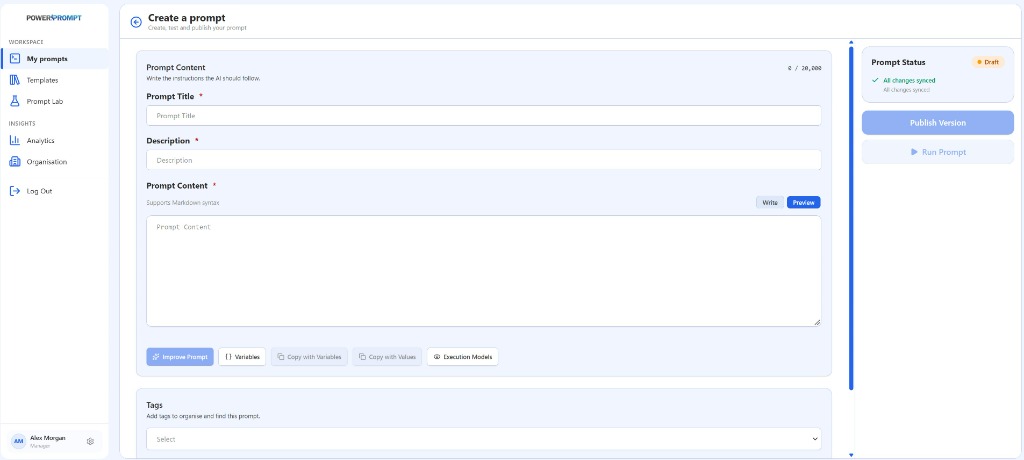
1. Creating or Editing a Prompt
The editing screen is identical to the prompt creation interface:
Creation Workflow
- Navigate to the My Prompts section in your workspace.
- Click the blue Create a Prompt button (located in the top-right corner).
- Complete the essential prompt fields:
- Prompt Title *: Actionable name describing the intended business outcome (e.g., Customer Incident Summary with Severity Scoring).
- Description *: Operational context, purpose, and recommended scenarios.
- Prompt Content *: Body of instructions authored in Markdown.
- Tags: Search keywords (up to 4 tags per prompt, e.g.,
support,incident,quality).
- Select your save action:
- Save (or
Ctrl+Sshortcut): Saves the prompt as a Draft. This version remains strictly private and personal to you; other workspace members cannot view your drafts. - Publish Version: Formally publishes the version as Active (visible and usable across the entire team and workspace) and increments the official version number (e.g., moving to
V1,V2, etc.).
- Save (or
2. Core Metadata Structure
Every prompt preserved in Power Prompt maintains a structured metadata schema:
| Metadata Field | Description | Operational Purpose |
|---|---|---|
| Title | Short, identifiable headline | Quick recognition in My Prompts and browser extension |
| Description | Operational context and guidance | Informs team members on proper usage and edge cases |
| Status | Draft (private) or Published / Active (shared) | Manages privacy, review, and publication lifecycles |
| Content | Body of instructions in Markdown (up to 20,000 characters) | Instructions executed by the AI model |
| Tags | Keywords (up to 4 per prompt) | Rapid multi-dimensional filtering |
| Category | Functional folder classification | Clean workspace hierarchy |
| Target AI Model | Recommended model provider via Execution Models | Quality, predictability, and cost optimisation |
| Author | Creator and recent contributors | Full team attribution and provenance |
| Versions | Incremented version number (e.g., V1, V2, V4) | Full audit trail and rollback capability |
3. Professional Markdown Editor
The integrated editor provides an ergonomic and focused workspace to compose and test your prompt instructions:
Drafting Tabs: Write and Preview
Above the instruction input field, two tabs give you complete rendering control:
Write: Raw text composition with native Markdown formatting (headers#, lists, code blocks, tables).Preview: Instant visual preview rendering your formatted prompt exactly as interpreted.
Real-Time Character Counter and Limit
A counter in the top-right corner displays textual density in real time (e.g., 16 / 20,000). The maximum length of a prompt is set at 20,000 characters.
Engineering Toolbar Below the Editor
Beneath the text area, 5 specialized action buttons streamline prompt workflows:
Improve Prompt: Launches fast AI-assisted optimisation directly in the editor.Variables({ }): Opens the variable configuration modal for dynamic{{variable_name}}placeholders.Copy with Variables: Copies the entire prompt to your clipboard retaining raw variable tags{{...}}.Copy with Values: Copies the prompt to your clipboard with current test variable values injected.Execution Models(i): Allows you to inspect and configure the recommended target AI model.
4. Right Sidebar: Status, Execution, Versions, and Comments
The right-hand panel consolidates operational lifecycle controls for your prompt:
Prompt Status and Instant Execution
- Status Indicator: Badge showing current state (
• Publishedin green, orDraft). - Unsaved Changes Flag: An orange indicator signals unsaved edits, accompanied by the
Ctrl+Sshortcut reminder. Publish VersionButton: Deploys the new revision officially to your team.▶ Execute PromptButton: Runs and tests the prompt against the configured model immediately, without leaving the editor.
Active Version and Visual Diff
- Displays the current active version badge (e.g.,
V4). - The
Compare Versionsbutton launches the side-by-side visual diff tool to inspect line-by-line variations between versions.
Contextual Team Comments
- Built-in Discussion Thread: Enables team members to leave feedback, ask questions, and propose refinements.
- Version Filter: The
Current Version ▾dropdown isolates comments tied specifically to the active revision. - Version Anchoring: Every message features a version tag (e.g.,
Draft of V3), ensuring full conversational provenance.
5. Improving the Quality of Your Prompts
Power Prompt offers two complementary mechanisms to improve your prompts:
- Improve Prompt: rapid optimisation directly within the editor.
- Prompt Improver: advanced prompt optimisation available in Prompt Lab.
Both features leverage artificial intelligence while addressing distinct needs.
5.1 Improve Prompt
The Improve Prompt feature allows you to instantly optimise a prompt while writing, without leaving the editor.
Why Use This Feature?
- Clarify ambiguous or incomplete instructions.
- Automatically structure the prompt.
- Strengthen instruction precision.
- Add relevant constraints and guardrails.
- Enhance the quality and consistency of generated outputs.
How to Use It
- Compose your prompt in the editor.
- Click Improve Prompt.
- Power Prompt analyses your text and generates an optimised alternative.
- Compare the proposal with your initial draft.
- Click Apply to replace current content, or continue making manual edits.
This feature is recommended for rapidly producing a higher-performing prompt in a single click.
5.2 Using the Prompt Improver
The Prompt Improver is an advanced tool accessible from the Prompt Lab. It enables deep optimisation, restructuring, and enrichment with a higher level of granular control.
Why Use Prompt Improver?
- Optimise a prompt towards specific operational goals.
- Refine structure, clarity, or content precision.
- Introduce advanced business and domain constraints.
- Transform static prompts into reusable templates with dynamic variables
{{variable}}. - Generate and compare multiple prompt variations.
- Tailor prompts to a specific business use case, domain, or target audience.
How to Use It
- Open the Prompt Lab.
- Launch the Prompt Improver tool.
- Enter or import the prompt to optimise.
- Configure desired enhancement options.
- Run the analysis.
- Compare the generated variations and select the version best suited to your needs.
Prompt Improver is intended for users who want to go beyond automated single-click improvements and benefit from a dedicated prompt engineering workspace.
5.3 Which Feature Should You Choose?
| Need | Recommended Feature |
|---|---|
| Rapidly enhance a prompt while writing | Improve Prompt |
| Obtain an optimised version in one click | Improve Prompt |
| Precisely control the enhancement process | Prompt Improver |
| Generate multiple prompt variants | Prompt Improver |
| Turn a prompt into a dynamic template with variables | Prompt Improver |
| Perform advanced prompt engineering work | Prompt Improver |
Improve Prompt is tailored for fast day-to-day drafting improvements, whereas Prompt Improver provides an advanced optimisation studio for users seeking to design and thoroughly refine prompt assets. For the full guide on the studio and its dual modes, see the dedicated page: Prompt Lab: Architect & Improver.